
Zebra MOT-TC55-CBTP Barcode Kit
SKU: MOT-TC55-CBTP
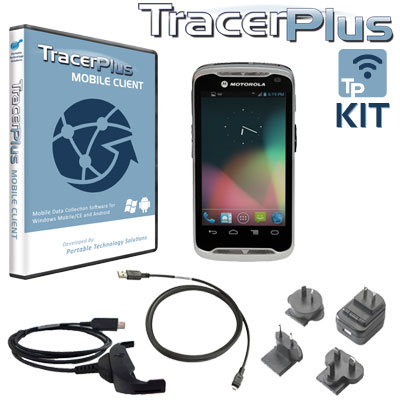
Zebra MOT-TC55-CBTP Barcode Kit
Product Description
The TC55 has been replaced by the TC51 and TC56. See related items below to purchase the TC51 or TC56 kit. TC51 is WLAN only while the TC56 is WWAN.
The Motorola TC55 Android Mobile Barcode Kit, featuring TracerPlus Mobile Software, allows organizations of any size to capture mobile data with Enterprise class data capture features including Barcode Scanning, Image Capture and Geo Coding. The Motorola TC55 is a rugged barcode terminal built for everyday enterprise use while maintaining the look, feel and functionality of the more popular consumer devices and smartphones. TracerPlus enables users to create custom applications in minutes to collect and transmit data to the back-end database of your choice over Wi-Fi or Wan / Cellular connectivity.

Motorola TC55 Hardware Specs
- Android 4.1.2 Jelly Bean OS
- Integrated 1D linear imager
- Autofocus 8 MP camera with user-controllable flash; supports integrated 1D/2D bar code capture
- 4G LTE, HSPA+, EDGE/GPRS/GSM Wan/Cellular radio
- Tri-mode IEEE 802.11a/b/g/n radio and Bluetooth 4
- 1.5 GHz dual core processor and 1GB RAM / 8GB Flash memory
- 4 ft./1.2 m drop to plywood per MIL-STD 810G; With protective boot: 4 ft./1.2 m to concrete; IP67 Sealing
TracerPlus Mobile Software Specs
- No programming required
- Create up to 32 different applications and up to 100 fields of data per app
- Design enterprise class forms from your PC using TracerPlus Desktop
- Data capture features include Barcodes, Signatures, Drop Downs, Radio Buttons, Check Boxes, Date Pop-ups, Number Pad Pop-ups and Text fields
- Import/Export data to text/csv files by default or sync data in batch, wireless or real-time to Excel or any ODBC database using TracerPlus Connect
FAQ and Support Resources for Zebra MOT-TC55-CBTP
 Warm and Cold Boot instructions for the Motorola TC55 - KB Article
 Motorola TC55 Integrator Guide
Motorola TC55 Quick Start Guide
Motorola TC55 Rubber Boot Install Guide
Motorola TC55 Stylus Install Guide